Introduction
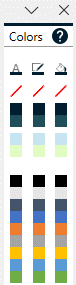
With the color pane you can easily access your corporate colors and theme colors and apply them to the Font, Fill, and Outline of your shapes.
Apply Colors
To apply colors, simply select your PowerPoint shape and click on the desired color in the color pane.
Default Colors
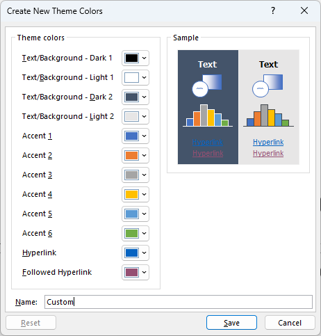
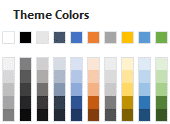
By default, the colors that are visible in the color pane are the theme colors of your current PowerPoint presentation. The theme colors can be changed in the Slide Master of your presentation: View → Slide Master → Colors → Customize Colors
Custom Colors
Custom colors can be defined in a separate xml file. To use custom colors, simply place the xml in your company shared location (if you have one) or place it in your local appdata folder %LocalAppData%\bkt solutions\presentaid
Configuring the Color Pane
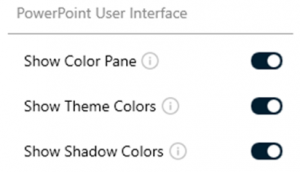
You can enable/disable the color pane by clicking the "Show Colors Pane" button in the presentaid ribbon. In the settings panel (General & Support → About) you can enable the Theme Colors and Shade Colors.